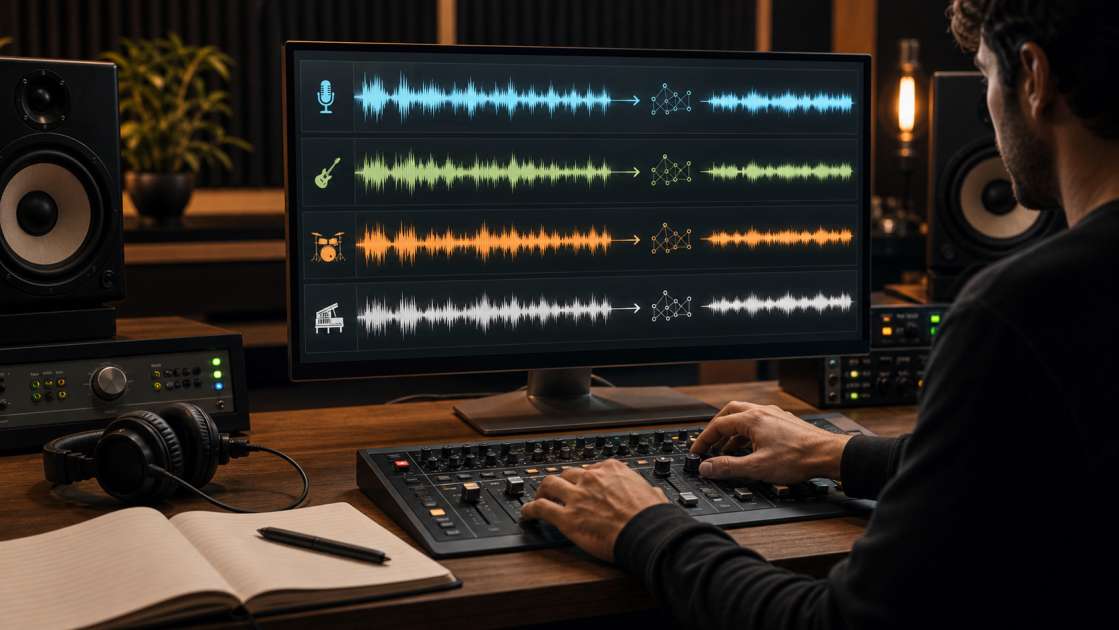
I uploaded my best track to my reference library last Tuesday. The melody worked, the vocals hit the emotion I wanted, the hook sat exactly where it needed to be. Thursday morning I listened back on my studio monitors and heard it: that metallic shimmer in the high end, a robotic precision in the vocal delivery that made the whole thing feel synthetic. My coffee went cold as I sat there, wondering what exactly I needed to fix. The song itself was solid. The problem was in the audio quality, something subtle but undeniable once I heard it.
In short: The main culprit is usually high-frequency shimmer or robotic vocal texture in the isolated vocal stem. Bring noise-cancelling headphones when you're checking your final mix — laptop speakers lie about what's actually in the top end. Budget around two hours and maybe ten to fifteen dollars if you need a dedicated cleanup tool. The single best advice: never process your full stereo bounce first. Get the stems, find which ingredient is broken, fix only that one, then recombine.
What Are AI Artifacts in Suno Music?
I spent an entire evening trying to describe to my friend what was wrong with a track I generated. "It sounds... slippery," I said. He looked at me like I'd lost my mind. But that's the thing — these artifacts don't announce themselves with a big flashing sign. They're subtle. A watery shimmer on the cymbals. A weird plastic sheen on the vocalist's breath. A reverb tail that doesn't fade naturally but sort of disintegrates into digital mist.
The most common offender is what people call metallic shimmer. It's that robotic, almost underwater quality you hear when the AI tries to render high-frequency content it doesn't fully understand. Vocals end up sounding like they were recorded through a thin sheet of aluminum foil. Cymbals and hi-hats get this glassy, synthetic texture that no real drummer has ever produced. Your ear picks it up even if your brain can't name it.
Then there's the hiss and crackle layer. Not the warm tape hiss that vintage gear gives you — this is colder, more digital, like the ghost of a bad MP3 compression sitting on top of everything. Sometimes it's constant, sometimes it flutters in and out during transitions. Either way, it makes the track sound machine-made to anyone paying attention.
Smeared ambience is another giveaway. When a note ends or a reverb decays, it should fade smoothly into silence. In Suno tracks, it often sort of flutters and breaks apart, like the AI got bored halfway through rendering the tail and just gave up. It's especially noticeable at the end of vocal phrases or when a guitar chord rings out.
And then you have the robotic vocals themselves. They hit every note with eerie precision, zero pitch drift, no little human imperfections. It's technically correct, which is exactly the problem. Real singers wobble slightly, they breathe unevenly, they push a syllable a tiny bit sharp when they're emphasizing emotion. Suno voices don't do any of that unless you get very lucky.
Why does any of this matter? Because these audible flaws break the listening experience. Even listeners who don't know what AI music is will feel that something is off. They might not be able to explain it, but the track won't feel quite real, and that kills the emotional connection you worked so hard to build. The shimmer fatigues the ear. The robotic precision feels lifeless. The hiss distracts from the music itself.
The Golden Rule: Don't Delete, Isolate and Fix
I've lost count of how many people in forums say they just keep regenerating until they get a clean output. They'll burn through fifty credits chasing a version without artifacts, then give up and convince themselves the shimmer adds character. This is wasteful. If the song itself is good — if the hook works, the structure holds, the lyrics don't fall apart — throwing it away because of a technical flaw is like burning down your house because the kitchen faucet leaks.
The smarter approach is to think of your track like a recipe. You've got individual ingredients: a vocal track, a drum track, a bass line, some synths or guitars, maybe strings. One of those ingredients has gone bad. Your job is to find which one, scrape off the mold, and put the dish back together. You don't throw away the whole pot of soup because one carrot was sketchy.
This is where stems come in. A stem is just an isolated piece of your song. Suno can split your finished track into separate files — one for vocals, one for everything else, sometimes more detailed breakdowns if you're lucky. Once you have these pieces in front of you, you can listen to each one alone and actually hear where the problem lives. Maybe the vocal is pristine but the instrumental has that metallic sheen all over the cymbals. Or maybe the instrumental is fine and it's the vocal that sounds like it was sung by a very polite robot.
The point is: isolation first, diagnosis second, surgery third. Trying to fix a full stereo mix is like trying to perform surgery through a hazmat suit. You need to see what you're working on.
Your Step-by-Step Artifact Removal Workflow
I'm going to walk you through the exact process I use now, the one I wish someone had handed me six months ago when I was still guessing and making things worse.
First, go into your Suno library and find the track you want to save. Click the three dots next to the song title. Select "Get Stems." When it asks which ones, choose "All detected stems" — not just vocal and instrumental. You want maximum control here. Suno will churn for a moment, especially if your track is dense or long. Be patient. When it's done, download everything. You should end up with a handful of WAV files sitting in your downloads folder.
Next, drag those files into your audio editor. If you don't have anything fancy installed, grab DaVinci Resolve — it's free, and the Fairlight audio page is shockingly powerful. Audacity works too if you want something even simpler. Import the stems, line them all up on the timeline so they start at the same moment. Now you have your operating table ready.
Now comes the detective work. Solo one stem at a time. That means muting everything except, say, the vocal track. Listen to it alone. Does it have that metallic sheen? Is there a background hiss that shouldn't be there? Are the consonants weirdly sharp, like someone turned the treble up too far? Move to the next stem. Solo the instrumental. Listen for shimmer in the cymbals, weird robotic textures in the synths, reverb tails that flutter instead of fading smoothly. Take notes. Write down which stem has which problem.
Once you know where the rot is, you start applying fixes — but gently. This is not the time to crank a noise reduction plugin to maximum and hope for the best. You make small moves, then immediately toggle the effect on and off to hear if you actually improved things or just made them worse in a different way. For high-frequency hiss or shimmer, use a high-cut EQ filter. Go into your equalizer, find the frequency spectrum, and gently roll off everything above, say, sixteen thousand hertz. You're not trying to lobotomize the track, just trim the glass off the top end. If your vocals sound robotic and metallic, try running that vocal stem through a de-esser or gentle multiband compression, but keep the intensity moderate. Full strength will make it sound processed in a different, equally annoying way.
If you've got fluttering reverb tails or messy ambience, look for a transient smoother or just manually fade out the end of problem sections. Sometimes the simplest fix is the best one.
When you think you've cleaned up the offending stems, unmute everything and listen to the full mix again. Check it on headphones, then on your phone speaker, then in your car if you can. If it sounds better everywhere, export the recombined track as a WAV file with the loudness normalized to around negative fourteen LUFS. That's the standard target for streaming platforms. You're done.
The Best Software and Tools for Cleaning Suno Tracks
I'm not going to pretend every tool is equally good or equally necessary. Some are free and perfectly adequate. Some cost money but save you hours of frustration. Here's how I'd break it down.
If you want a completely free workflow and you're willing to spend a little time learning an interface, use DaVinci Resolve. It's nominally a video editor, but the Fairlight audio section is basically a professional DAW hiding inside. You can import stems, apply EQ, use noise reduction, automate volume changes, and export clean files without paying a cent. Audacity is the other free option — simpler, less powerful, but totally fine for basic EQ work and cutting out frequency ranges that are causing trouble.
If you want a tool built specifically for cleaning AI-generated audio artifacts, look at dedicated audio restoration plugins. Services like iZotope RX have spectral repair tools that can surgically remove shimmer, hiss, and other digital artifacts without destroying the underlying audio. They're not cheap, but they're industry standard for audio restoration work.
If you already own a professional DAW like Adobe Audition, Ableton Live, or Logic Pro, you don't need to buy anything new. You've got all the EQ, compression, and restoration tools you need sitting right there. The workflow is the same: import stems, diagnose, apply surgical fixes, export.
For stem separation, if Suno's own stem export isn't clean enough, try LALAL.AI or Fadr. These services use their own AI models to pull apart a stereo mix into individual components. The results aren't studio-multitrack clean, but they're often better than what Suno gives you by default, especially if your track is dense and the original separation got confused.
For final mastering after you've cleaned everything up, LANDR or eMastered are solid choices. But — and I can't stress this enough — mastering is the last step. If you try to master a track that still has shimmer and hiss baked in, you're just making those problems louder and more polished. Clean first, master second.
How to Fix Specific Artifacts: A Problem-Solving Guide
Let me give you the exact moves I make when I run into the most common problems, because vague advice like "use EQ" is useless when you're sitting there at two in the morning trying to save a track.
High-frequency hiss or shimmer is usually the easiest fix. Open an EQ on the offending stem. Look at the frequency graph. Find the spot where the spectrum starts climbing unnaturally into the stratosphere — usually somewhere above fifteen or sixteen thousand hertz. Apply a high-cut filter, also called a low-pass filter. Start gentle. Roll off a little bit, listen, roll off a bit more, listen again. The goal is to remove the glassy sheen without making the track sound like it's playing through a blanket. When you can listen to the cymbals or the vocal without wincing, stop. You're done.
Robotic or metallic vocals need a two-part approach. First, isolate the vocal stem and apply gentle saturation or harmonic enhancement to add natural texture back into the voice. This smooths out the plastic tone and makes consonants feel less machine-stamped. Second, use EQ to cut any harsh frequency spikes. Vocals sometimes have a piercing zone around three to five kilohertz that the AI renders too hot. A narrow cut in that range can make a huge difference. Use a de-esser to tame excessive sibilance — those harsh "S" and "T" sounds that can make vocals feel razor-sharp. Just don't carve out too much or the voice will sound distant and weak.
Fluttering or messy reverb tails are annoying because they usually live at the end of phrases where your ear is most sensitive to weirdness. If your software has a transient shaping tool, use it to smooth out the decay. If not, you can manually fade out the tail of the problem section, or use a gate to cut it off cleanly once it drops below a certain volume. Neither solution is perfect, but both are better than leaving a fluttery mess that makes the listener's brain itch.
Muddy mids often plague AI-generated instrumental stems. The two-hundred to five-hundred hertz range can get congested with competing elements that the AI didn't properly separate. Use a parametric EQ to carve out narrow notches in the mud zone, or apply gentle multiband compression to control the buildup. Reference your mix against professional tracks in the same genre to identify where your mids sit compared to theirs.
Final Tips for a Professional-Sounding Track
Here's the stuff I wish I'd internalized earlier, the little process details that keep you from accidentally making things worse or losing track of your own progress.
Name your files in a way that doesn't make you want to throw your laptop out the window. I use a system like "TrackName_v1_OriginalExport," then "TrackName_v2_VocalCleaned," then "TrackName_v3_FinalMix." It sounds tedious, but when you're comparing three different versions an hour later, you'll thank yourself for not having fifteen files all called "output.wav" sitting in the same folder.
Don't over-process. This is the mistake I see constantly, and I've made it myself more times than I care to admit. You hear a problem, you apply a fix, the problem gets quieter, so you push the fix harder, and suddenly the vocal sounds thin and lifeless or the instrumental has no top end left at all. Every adjustment you make has a cost. Go gentle. If you start losing the musicality of the track, you've gone too far. Back off.
Fix the most distracting problems first. Your brain can only focus on so many things at once. If the vocal has a horrible metallic sheen, start there. Don't get lost tweaking the bass EQ or adjusting the reverb on the snare drum while the vocal is still making people wince. Address the big stuff, then move to the small stuff.
Test your final mix on multiple devices before you call it done. What sounds perfect on your studio headphones might be a muddy mess on phone speakers or sound shrill in a car. Play it everywhere. If it holds up across all those environments, you've probably got it right. Reference listening is critical — compare your cleaned track against professionally produced songs in the same genre to ensure your tonal balance and loudness are competitive.
Understand the limits of what you're doing. These tools and techniques can fix technical problems — shimmer, hiss, robotic texture, bad balance, harsh sibilance, muddy mids. They cannot fix a boring melody, weak lyrics, or a song structure that doesn't work. If the fundamental music isn't there, no amount of audio surgery will save it. Sometimes the right move is to go back to Suno, tweak your prompt, and generate something better. Don't waste three hours polishing a song that was never going to be good.