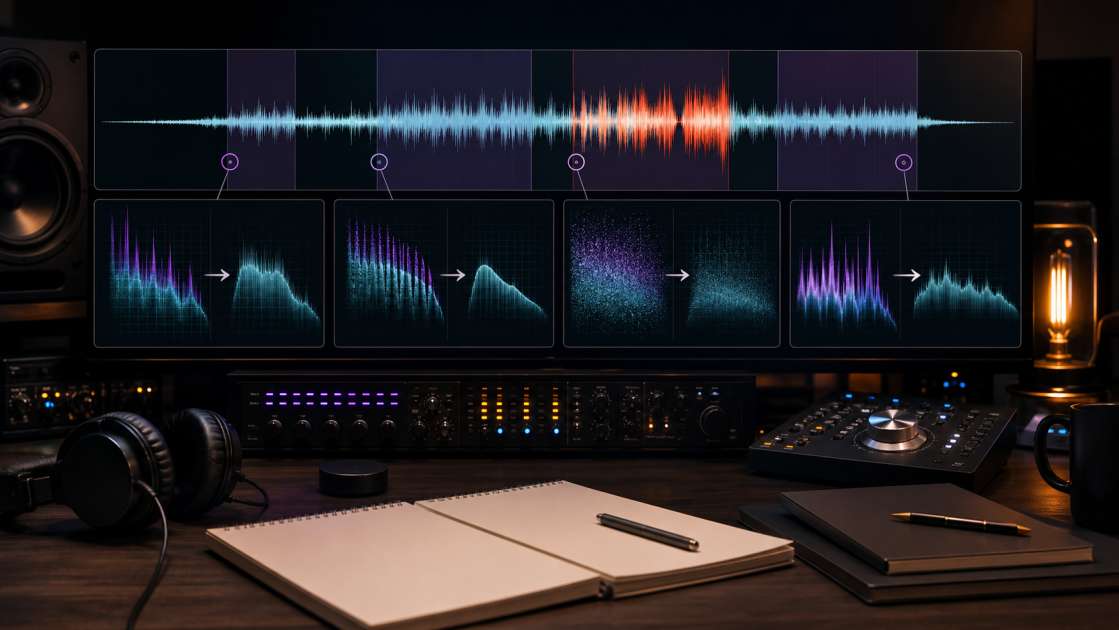
Suno AI can generate impressive music, but it often produces audible defects that no human performance would create. You might get a compelling melody with lyrics that fit your prompt perfectly, but the vocals shimmer with a metallic quality, the cymbals sound thin and disconnected, and there's a persistent digital hiss layered over everything. The drums lack punch, sustained notes develop a warbling texture, and busy sections collapse into muddy frequency conflicts. These are artifacts, the audible byproducts of algorithmic music generation, and they require deliberate attention if you want usable output.
In short: Suno AI often produces metallic shimmer, hollow vocals, digital hiss, and muddy mids. The cleanest results come from staying between 60-175 BPM with simple prompts. Use a DAW with tools like iZotope RX or similar for spectral repair, noise reduction, and EQ correction. Budget around $30-50 per month for stem separation and repair plugins if you're serious about polishing tracks. Always generate 3-5 versions of the same prompt and pick the cleanest one before starting any post-processing.
What Do Suno AI Artifacts Sound Like? A Detailed Breakdown
The most common artifact is what's called "AI shimmer," a high-frequency trembling that sits on top of vocals and cymbals. It's a grainy, vibrating texture that sounds like the waveform is being modulated hundreds of times per second. This shimmer is most obvious on sustained notes. A held vocal tone that should be smooth instead develops a metallic, unstable quality with unnatural resonances.
Vocals often sound hollow, as if recorded inside a metal container. There's excessive top-end resonance with no warmth, just cold digital sheen. The timbre lacks the natural harmonics and body of a human voice captured with proper microphone technique. On long notes, vocals and wind instruments can develop a squeaky or quacking overtone that emerges midway through the sustain, a croaking quality that reveals the algorithmic origin.
High frequencies often feel detached from the rest of the mix. Hi-hats and cymbals are audible but don't sit naturally with the mid-range elements. The frequency spectrum sounds split, with the highs isolated from the mids, which themselves sound boxed-in and constrained. This separation creates a mix that lacks cohesion.
The background noise isn't simple white noise. It's a complex, layered hiss with metallic tones, similar to tape hiss but with a digital character. Digital clicks and blips appear randomly, brief moments of distortion or dropouts. Drums often have weak transients, as if poorly time-stretched. The kick drum lacks impact, the snare sounds smeared, and percussive elements feel soft and indistinct. When multiple instruments play simultaneously, the mix can become muddy, with poor separation between guitar, keyboards, and other elements.
Key Factors That Cause Artifacts in Suno AI
Artifacts follow patterns related to your prompt structure and parameters. Tempo is the biggest factor. Suno produces cleaner output between 60 and 175 BPM. Below 55 BPM or above 180 BPM, artifacts increase significantly. Extremely slow tracks often exhibit timing inconsistencies and unnatural sustain artifacts, while very fast tracks generate digital glitches and smearing.
Prompt complexity matters. Requesting too many contradictory elements, such as "calm aggressive lo-fi punk," confuses the model. The algorithm attempts to honor conflicting instructions, resulting in unstable output with increased artifacts. Using many genre tags stacked together, like "rock, pop, jazz, soul, funk, blues," produces unfocused results where the model struggles to maintain consistent sonic character.
Extreme descriptors push the model to its performance limits. Terms like "ultra-fast," "insanely distorted," or "extremely complex arrangement" increase the likelihood of glitches, hiss, and frequency imbalances. The model's training data has boundaries, and requests at those boundaries produce less stable results.
Step 1: How to Prevent Artifacts with Better Prompting
Prevention is more efficient than repair. Clear, concise prompts with no contradictions produce cleaner output. Instead of complex descriptive phrases, use focused genre labels. "Melancholic indie folk" works better than "beautifully haunting melancholic indie folk with ethereal dream-pop influences." The model interprets focused instructions more reliably.
Limit genre tags to one or two. For a rock song with a bluesy guitar solo, use "rock, blues guitar solo" without adding unrelated genres. The more focused the prompt, the more consistent the output. Avoid extreme language. "Fast guitar solo" produces more stable results than "ultra-fast shredding guitar solo."
Keep tempo between 60 and 175 BPM. If you need slower or faster tempos, time-stretch the audio in a DAW afterward where you have precise control. Generate multiple takes, at least three to five versions of the same prompt. Artifacts have a random component, so one version may be significantly cleaner than another. This takes minimal extra time and can save hours of post-processing. Select the cleanest version before beginning any repair work.
Step 2: How to Remove Artifacts with Post-Processing in a DAW
Even with optimized prompts, some artifacts remain. Post-processing begins with stem separation. Tools like Lalal.ai, Moises.ai, or Ultimate Vocal Remover split the track into vocals, drums, bass, and other stems. This allows isolated treatment of each element. If the stem separator creates an "other" or "fx" stem, evaluate it carefully, as it often contains concentrated artifacts that may be better discarded.
Load stems into your DAW and apply repair tools. iZotope RX's Click/Pop removal module catches digital clicks, pops, and brief distortions. The spectral repair tool displays artifacts visually in the spectrogram as unusual smears or bright spots in the frequency spectrum. These can be removed with targeted spectral editing.
For vocals with excessive reverb or hollow resonance, tools like Steinberg SpectraLayers can reduce reverb and room tone while preserving the core vocal signal. This addresses the metallic, distant quality some Suno vocals exhibit.
Apply EQ corrections. The high-frequency hiss typically sits above 16 kHz. A gentle high-cut filter at 16 to 17 kHz with a soft slope around 12 dB per octave removes hiss without excessive dulling. Make targeted adjustments: a boost around 200 to 400 Hz adds body, while a cut around 8 to 10 kHz tames harshness. Suno tracks often lack presence around 3 kHz, so a gentle 1 to 2 dB boost there can improve clarity and forward positioning in the mix.
Apply light saturation to stems. Tape saturation, tube saturation, or soft clipping adds subtle harmonics that mask remaining digital artifacts and create cohesion. The goal is subtle harmonic enrichment, not distortion. If a section remains unusable after repair, consider replacing it. Mute problematic AI-generated drums and program replacements, or layer new instruments over noisy sections to mask them.
Summary: Your Quick Checklist for Clean Suno AI Tracks
Before generating, ensure your prompt is simple and focused. Use one or two genre tags, avoid contradictions, and avoid extreme descriptors. Set BPM between 60 and 175. Generate at least three to five takes and select the cleanest version. This prevention phase is more efficient than extensive post-processing.
After downloading, split the track into stems using separation tools. Evaluate or discard the "other" stem if it contains primarily artifacts. Run click and pop removal, then apply spectral repair to remove visible anomalies. Apply high-cut EQ at 16 to 17 kHz to reduce hiss. Make surgical EQ adjustments to rebalance frequencies. Add light saturation to each stem for warmth and glue. If sections remain problematic after repair, layer replacement instruments or rerecord those parts. The goal is to address audible defects methodically, not to achieve perfection from algorithm-generated source material.
Frequently Asked Questions (FAQ) about Suno AI Artifacts
Can Suno music be separated into stems? Yes. Any audio can be processed through stem separation tools. Lalal.ai and Ultimate Vocal Remover work reliably with Suno output, though separation quality varies depending on how well-defined the elements are in the mix. Stem separation is essential for targeted artifact removal.
Why does Suno music often sound like a low-quality MP3 with a cutoff at 16 kHz? The model was trained on large datasets that likely included many compressed audio files. MP3 compression typically cuts frequencies around 16 kHz, and the model learned this as a characteristic of music. The output reflects the training data's frequency limitations.
Is it better to fix artifacts with prompts or in a DAW? Use both. Optimized prompts reduce artifacts at the source, which is the most efficient approach. Post-processing in a DAW addresses remaining artifacts that survive prompt optimization. Prevention and repair are complementary stages, not alternatives.
Will Suno improve at avoiding artifacts in future versions? Models improve as training data quality increases and algorithms advance. Current artifacts reflect present limitations in the model's architecture and training. Future versions will likely reduce some artifact types, but working with current output requires understanding and addressing these specific audible defects.