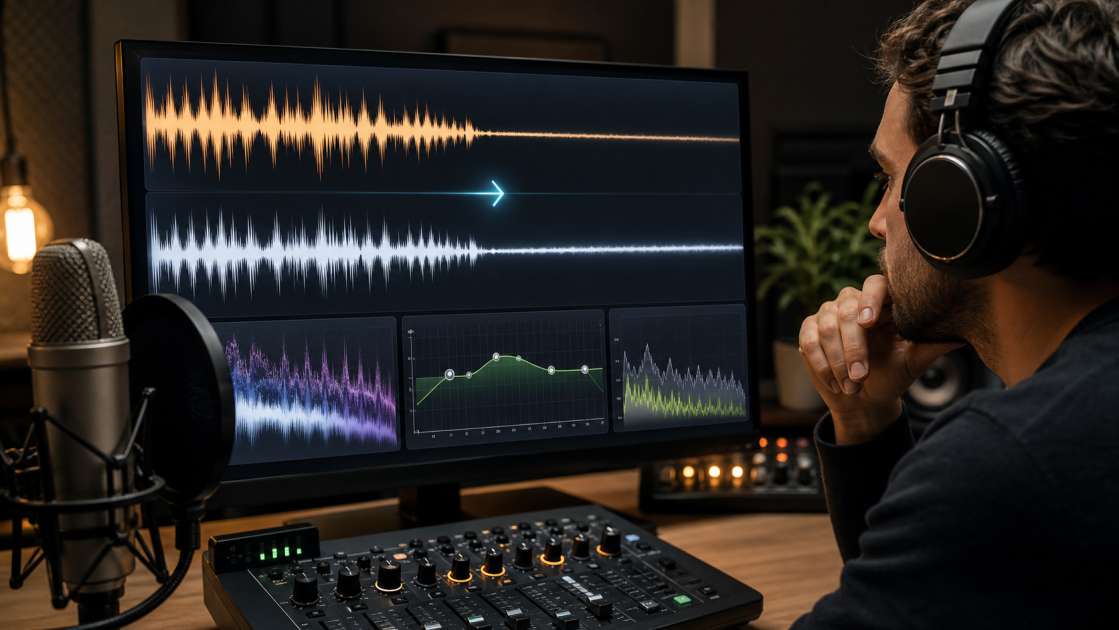
I downloaded my first Suno track about three months ago, grinning like an idiot because I'd just 'composed' a synth-pop anthem in under two minutes. Then I put on my studio headphones. The vocals sounded like they'd been recorded inside a tin can by a very angry robot, and every 'S' sound felt like someone jabbing a needle into my eardrums. The AI had given me a miracle, sure, but it had wrapped that miracle in sandpaper and metallic foil. That's when I realized: Suno makes the song, but you have to make it listenable.
In short: the main problem is harsh vocals at 6-8 kHz and metallic resonance around 2.5 kHz. The solution is a chain of EQ cuts, aggressive de-essing, and Noise Reduction in Audacity. You must capture a noise profile from a quiet section of the track. Budget is zero dollars, all free software. The key advice is to process the vocal stem separately, otherwise you'll damage the entire instrumental.
First, Understand the Common Suno Sound Problems
I spent an embarrassing amount of time trying to figure out why my Suno tracks sounded 'off' before I understood what I was actually hearing. It's not that the AI is bad—it's that it has a signature, like a signature made of frequencies. Once you know what to listen for, you can't unhear it. The metallic formant sheen sits there in the upper-mids like a cheap synthetic sheen on a plastic apple. It's around 3.5 kHz, and it makes every vocal sound like it's being sung through a kazoo made of aluminum. Then there's the sibilance problem: the 'S' and 'Sh' sounds come out brittle and piercing, clustered around 5-8 kHz depending on whether your AI decided to give you a tenor or a soprano. I once generated a folk ballad where every 's' felt like a tiny dentist drill. Delightful.
But the real villain is what I call the AI buzz zone. It's a low-level hum that lives around 2.5 kHz, a robotic undertone that gives away the synthetic origin. It's not loud, but it's persistent, like tinnitus you can actually fix. When you stack all these artifacts together—metallic resonance, harsh sibilance, and that synthetic buzz—you get a track that sounds like a demo, not a master. The good news is that all of these problems live at specific frequencies, which means you can hunt them down and eliminate them one by one.
Your Toolkit: The Free Software You Need
I'm cheap, and I assume you are too, so I'm not going to tell you to buy a two-thousand-dollar plugin suite. Everything I use for this process is either free or has a free version that does exactly what we need. Audacity is the workhorse—it's open-source, it's ugly, and it works. I do all my EQ carving, noise reduction, and final loudness normalization in there. The interface looks like it was designed in 2003, which it probably was, but once you get over the aesthetic trauma, it's perfectly functional.
Adobe Podcast Enhance is a browser-based tool that I initially dismissed as marketing nonsense until I actually used it. You upload your vocal stem, wait about thirty seconds, and it spits back a version that sounds like you recorded it in a proper studio instead of inside a computer's fever dream. It's free, and it's almost suspiciously good. For the more advanced noise reduction stuff, I sometimes use DaVinci Resolve's Fairlight tab. It's free, but it's also a full video editing suite, so installing it just to clean up audio feels like buying a tank to kill a spider. Still, the noise reduction presets work wonders if you can stomach the bloat. I also have Adobe Audition, which I pay for because I'm a masochist, but you don't need it. If you have it, great—its multiband compressor is cleaner than Audacity's. If you don't, you'll survive.
Step 1: The Critical EQ Chain for Fixing AI Frequencies
This is where the magic happens, or more accurately, where you undo the curse that Suno's synthesis engine placed on your track. I apply this EQ chain almost exclusively to the vocal stem, because that's where the AI artifacts are most obvious. You start with a high-pass filter at 80 Hz to cut out the inaudible sub-bass rumble that's just wasting headroom. Then you boost at 150 Hz to add back some warmth and body, because AI vocals always sound thin and anemic, like they're on a juice cleanse.
The next cuts are surgical. You carve out 800 Hz and 1.2 kHz to kill the nasal, boxy resonance that makes the vocal sound like it's coming from inside a cardboard box. Then comes the big one: a -3 dB cut at 2.5 kHz. This is the primary AI buzz zone, the frequency where the robotic hum lives. I always feel a little thrill when I apply this cut and hear the synthetic sheen just evaporate. At 3.5 kHz, you attack the metallic formant sheen directly—this is the frequency that makes everything sound like a cheap synthesizer. Another cut at 5 kHz starts to smooth out the sibilance harshness, and finally, you boost above 8 kHz with a high-shelf to add back some natural air and openness. Without that top-end lift, the vocal sounds dull and lifeless after all those cuts.
I once tried a dynamic EQ plugin for this process, where the cuts only activate when the harsh frequencies actually stick out. It worked beautifully—the vocal stayed bright during the soft parts and only got tamed when things got aggressive. But that requires a paid plugin, and I'm trying to keep you solvent. The static EQ chain I just described will get you 90% of the way there, and you can do it in Audacity for free.
Step 2: Taming Harsh Vocals with Aggressive De-Essing
If you've ever heard a recording where every 'S' sound feels like a tiny ice pick being driven into your ear canal, you know what sibilance is. Suno vocals are sibilance factories. The AI doesn't understand that human singers naturally soften their consonants; it just blasts them at full synthetic power. So you have to de-ess aggressively, more aggressively than you would with a real human vocal, because a real human has a soft palate and a sense of self-preservation.
For female-sounding vocals, I target 6-8 kHz. For male-sounding vocals, I go a bit lower, around 5-7 kHz. I set the de-esser to reduce by 4-7 dB, which sounds brutal, but trust me, it's necessary. I made the mistake once of being gentle with a folk track, reducing by only 2 dB, and every 'Sh' still sounded like a cymbal crash. If you own FabFilter Pro-DS or Oeksound Soothe2, use those—they're surgical and transparent. If you don't, Audacity's built-in de-esser will do the job, even if it's a bit clunky. The goal is to make the vocal sound like it was sung by a person, not a malfunctioning vocoder from 1987.
Step 3: Removing the Metallic Hum with Noise Reduction
This is the step where you hunt down the underlying AI-generated ambiance, the low-level hum that makes your track sound like it was recorded in a server farm. The trick is to teach Audacity what the noise actually sounds like by creating a noise profile. You find a section of your track—usually at the very beginning or end—where there's no music, just that faint robotic hum. You select that section, go into the Noise Reduction effect, and hit 'Get Noise Profile'. Audacity memorizes that sonic signature, and then you apply it to the entire track.
My settings are usually Reduction Amount at 50-70%, Reduction Level at 12-18 dB, Sensitivity at 6, and Frequency Smoothing at 3. These numbers come from months of trial and error, mostly error. Go too aggressive and your vocal will sound like it's underwater. Go too gentle and the metallic hum just laughs at you. The metallic hum is what separates a Suno track from something you'd actually release, and this step is what kills it. You're looking for that sweet spot where the artifacts disappear but the vocal still sounds present and clear.
Step 4: Humanizing the Performance with Pro Touches
Even after all the corrective EQ and noise reduction, the vocal still sounds robotic. It's cleaner, sure, but it's also sterile, like a perfectly edited Wikipedia article. So I run the vocal stem through Adobe Podcast Enhance, which uses its own AI magic to add clarity and presence. I set the enhancement slider to about 50%—any higher and it starts to sound over-processed, like someone applied Instagram filters to an audio file. The difference is subtle but real: the vocal suddenly has dimension and weight, like it's occupying actual space instead of just existing as a waveform.
Then comes the weirdest trick: adding breaths. Real singers breathe. AI singers don't, unless you specifically prompt them to, and even then it sounds fake. So I find or record clean breath samples—little inhales and exhales—and I drop them between vocal phrases at around -20 to -24 dB. Quiet enough that you barely notice them, but present enough to trick your brain into thinking this was sung by a living organism. I felt ridiculous the first time I did this, sitting there with a mic recording my own breathing like some kind of ASMR artist. But it works. The vocal goes from 'synthetic and uncanny' to 'plausible human performance'. It's the audio equivalent of adding a mole to a wax figure to make it look real.
Step 5: Final Mastering for Release
Now you've got a clean vocal and a cleaned-up instrumental, and you need to glue them together into something that won't embarrass you on YouTube. I use a multiband compressor to balance the final mix—Audacity has one, Adobe Audition's is better, but both will work. I usually start with a preset like 'Broadcast' or 'Pop Master' and tweak from there. The goal is to control the bass (20-250 Hz) so it doesn't get muddy and add presence to the mids (250-4 kHz) so the vocal cuts through.
The final step, and this is non-negotiable, is loudness normalization. I set the integrated loudness to -14 LUFS using Audacity's Loudness Normalization effect. This is the standard for YouTube and most streaming platforms. I learned this the hard way when I uploaded a track that I'd normalized to -10 LUFS, thinking louder was better. It sounded great on my laptop, but on my phone it was a distorted mess, and YouTube's auto-leveling crushed it into oblivion. -14 LUFS is the sweet spot. It's loud enough to compete with other tracks but not so hot that it clips on mobile devices.
Before I publish anything, I listen on at least three different playback systems: my studio headphones, my phone's speaker, and my car stereo. If it sounds good on all three, it's ready. If it sounds harsh or thin anywhere, I go back and adjust. This final listening stage has saved me from releasing some truly terrible mixes, and I'm not proud of how many times I've had to do it.
Summary: Your 5-Step Suno Audio Fix Workflow
You start by isolating the vocal and instrumental stems from your Suno generation. Then you apply the 8-band parametric EQ chain to the vocal stem, carving out the AI buzz at 2.5 kHz, the metallic sheen at 3.5 kHz, and the harsh sibilance around 5 kHz while boosting at 150 Hz and above 8 kHz. Next, you de-ess aggressively, targeting 6-8 kHz for female vocals or 5-7 kHz for male vocals with a 4-7 dB reduction. You use Noise Reduction with a custom profile to strip out the underlying metallic hum, setting Reduction Amount to 50-70% and Reduction Level to 12-18 dB. You run the cleaned vocal through Adobe Podcast Enhance at 50% strength, then add breath samples at -20 to -24 dB to humanize the performance. Finally, you mix the stems back together, apply a multiband compressor with a Broadcast or Pop Master preset, and normalize to -14 LUFS for release.
This workflow won't turn Suno into Abbey Road, but it will elevate your track from 'fun AI experiment' to 'something I might actually put on a playlist'. The difference between doing this and not doing this is the difference between sounding like a hobbyist and sounding like someone who cares. I've done this process maybe forty times now, and every time, I still find a new harsh frequency hiding somewhere, waiting to ruin my day. But that's the game. Suno gives you the song. You give it the polish.