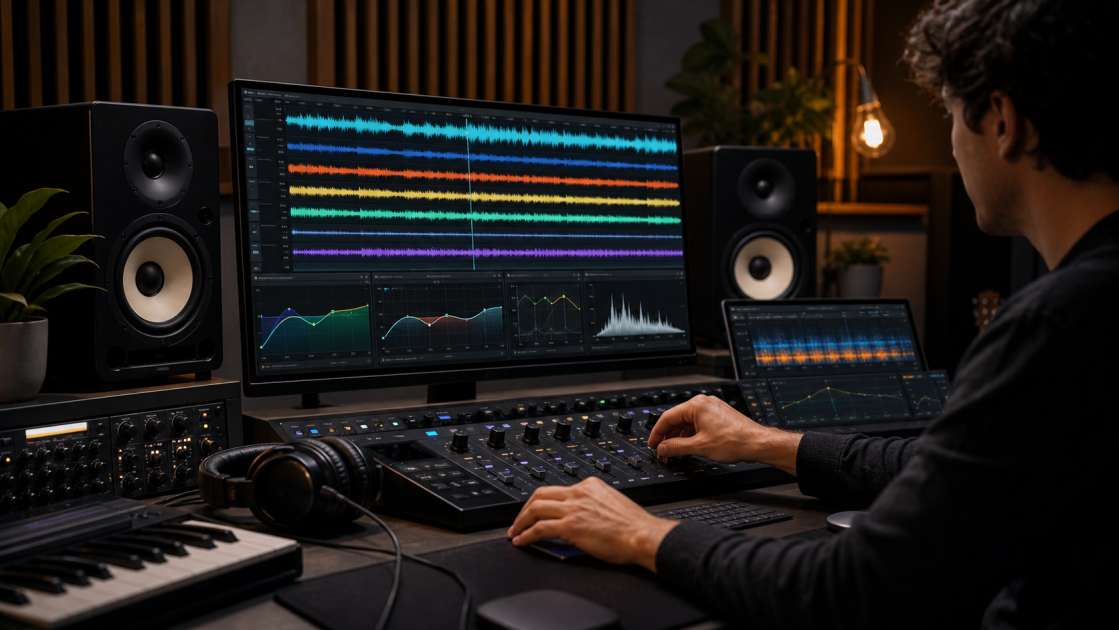
I spent several hours recently listening to the same AI-generated track on repeat, trying to understand why a melody that should have resonated simply did not. The notes were correct. The structure was solid. But the entire track sounded like it had been recorded through a layer of digital gauze. That metallic sheen in the high end. That robotic flatness in the vocal. That sense of listening to music created by something that had learned what music was supposed to sound like but had never actually felt it. AI music generators like Suno and Udio are extraordinary at sparking ideas, but their raw output is almost never ready for actual release. This guide exists because potentially great AI tracks are often ruined by fixable problems. If you have generated something in Suno that you want people to hear, you need to know how to clean it properly.
In short: working with AI tracks means eliminating digital artifacts in the 12-16 kHz range, robotic vocals in 2-5 kHz, and artificial uniformity through careful compression. Use a good de-esser and Soothe2 for resonances. Software budget ranges from zero with Audacity to $400 for iZotope RX. Main advice: if you spend more than 20 minutes fighting one artifact, regenerate the track with a new prompt.
Why AI-Generated Music Needs Cleaning: The Common Problems
The models are trained on mountains of data, but somewhere in that training process they picked up habits. Predictable sonic patterns that show up in track after track. High-frequency artifacts are the most obvious offender. There is a metallic sizzle that sits in the upper register, especially pronounced between 12 and 16 kHz in Suno tracks. It sounds expensive until you realize it is just noise. Then there is the mid-range muddiness. Vocals that sound like they are being sung through a cardboard tube. Instruments that blend into a grey sludge around 2 to 5 kHz, robbing the track of any clarity or punch. The AI knows these elements should be there, but it has not quite figured out how to give them space.
The artificial uniformity is problematic. Human-made music breathes. It has quiet moments and loud moments and the tension between them is what makes it feel alive. AI tracks often feel like they have been run through a limiter set to crush all dynamics. Everything sits at the same level. The whispered verse has the same energy as the anthemic chorus, which makes the whole thing feel flat and exhausting to listen to. Sibilance is another issue. Those harsh s and t sounds that make you wince when the vocal hits certain words. Stem separation artifacts often exaggerate this, turning a normal vocal performance into something harsh and fatiguing. And then there is the missing warmth. That subtle harmonic richness that analog gear imparts, the thing that makes a recording feel three-dimensional instead of vacuum-sealed in plastic. AI-generated tracks often lack this entirely, resulting in a digitally sterile sound that is technically correct but emotionally cold.
The Essential Toolkit: Your AI Cleaning Software Arsenal
Think of this as your digital workshop. You cannot properly clean an AI track with only one plugin. For your DAW, Audacity or Tenacity are fine if you are starting out. They are free, they work, and they have enough tools to get you through basic cleanup. If you are serious, Ableton Live, Logic Pro, or Cubase will give you the precision and workflow speed you need. Any professional DAW will do the job.
For stem separation, UVR is free and effective. SpectraLayers is the paid option if you want surgical control. LALAL.AI and MOISES.AI are online options if you prefer a browser-based workflow. For corrective EQ, Soothe2 is useful when dealing with harsh resonances. It is a dynamic resonance suppressor that catches problematic frequencies without destroying the entire track. A standard de-esser handles sibilance, and any parametric EQ with a spectrum analyzer will work for general frequency adjustments. For restoration, iZotope RX is the industry standard. The de-click and de-noise modules are valuable, though the full suite is expensive. Tape saturation or tube emulation plugins add back the warmth that AI strips out. For mastering, iZotope Ozone's Maximizer handles limiting, and the free Youlean Loudness Meter checks LUFS targets reliably.
Step 1: Preparation and Stem Separation
Working with the full stereo mix is insufficient. You need stems. Individual tracks for vocals, drums, bass, instruments. This is necessary if you want a professional result. Export them from Suno if you have a Pro or Premier plan, or run your track through a dedicated stem separator if the platform does not provide clean splits. Import all stems into your DAW, each on its own track. Every stem needs to start at exactly the same point—Bar 1, Beat 1, sample zero. Some separation tools introduce a tiny delay, maybe a few milliseconds. You will not hear it immediately, but after a minute or two the track will start to feel wrong. Phasing issues, timing drift, that vague sense that something is off even though you cannot pinpoint it.
Organize your tracks. Color-code them. Vocals blue, drums red, bass green, whatever system makes sense to you. A messy session is a slow session, and you will waste time hunting for the right track instead of actually working.
Step 2: Taming High-Frequency Artifacts and Digital Haze
That metallic sizzle in the high end is the calling card of AI generation. For general cleanup, use a gentle low-pass filter. Not a hard cut—those introduce phase problems and make the track sound dull. A shelf filter around 14 to 16 kHz works better. You are rolling off the extreme highs without removing the track's air and presence. For surgical removal of specific ringing tones, use a narrow-band or notch EQ. Boost a narrow band and sweep it through the high frequencies until you find the exact spot that is annoying. It will be obvious when you hit it—the sound will jump out. Then cut that frequency, narrow and deep.
With Suno tracks specifically, the problem area is almost always concentrated between 12 and 16 kHz. Your mileage may vary depending on the model version and the genre, but that is the sweet spot for trouble.
Step 3: Fixing the Mid-Range and De-Essing Vocals
The robotic quality in AI vocals lives in the mid-range, usually between 2 and 5 kHz. There is often a harsh resonance right around 2.8 to 3 kHz that makes everything sound processed and artificial. Use narrow-band EQ cuts to carve out these frequencies. Gently. You are not trying to scoop the entire mid-range, just remove the specific problem spots. This is where a spectrum analyzer helps—you can see the frequency buildup and target it precisely instead of guessing.
For sibilance, apply a de-esser directly to the vocal track. Set it to target the 5 to 8 kHz range. The goal is to reduce the harshness of s, sh, and t sounds without making the vocal sound dull or muffled. Usually aim for about 3 to 6 dB of reduction on the loudest sibilant peaks. More than that and you start losing intelligibility. Less and you have not solved the problem. Separation artifacts make sibilance worse, so this step is almost always necessary on AI vocals.
Step 4: Managing the Low-End: Rumble and Boxiness
The low-end problems are less obvious but just as damaging. Low rumble below 30 Hz is just wasted energy eating up headroom. Apply a high-pass filter around 30 to 40 Hz on almost every track except the kick and sub-bass. You are not losing anything musical down there, just cleaning up useless information that makes your mix muddy. On vocals, high-pass up to 80 to 100 Hz. There is no useful vocal information below that, just proximity effect and room noise that will cloud the mix.
Boxiness is that cardboard-like, honky sound that builds up in the low-mids, usually between 200 and 400 Hz. Bass and synth pads are the worst offenders. Search this range on the tracks that feel boxy and apply gentle, wide cuts. Not surgical, wide. You are shaping the overall tone, not removing a specific problem frequency. Often cut 2 to 4 dB across a fairly broad Q in this range, which cleans up the mix without making individual elements sound thin.
Step 5: Restoring Life and Warmth to Sterile Tracks
AI tracks lack the subtle harmonic distortion and overtones that make analog recordings feel alive. Digital sterility is the technical term. Saturation is the fix. Use tape saturation or tube emulation plugins to add color and warmth back into the sound. Apply these either on individual tracks—vocals and bass benefit especially—or on the entire mix bus for a cohesive glue effect. The key is subtlety. You want the track to feel warmer and fuller, not obviously distorted. If someone listening can consciously hear the saturation, you have gone too far.
A little saturation also helps separated stems sound like they were recorded as a single performance instead of four isolated elements fighting for space. It is the sonic equivalent of turning on a warm light in a cold room. Everything just feels more comfortable.
Step 6: The Mastering Process for Dynamics and Loudness
Mastering is your final polish before the track goes out into the world. To combat artificial uniformity, use subtle volume automation by hand. Raise the chorus by 1 to 2 dB compared to the verse. Drop the bridge slightly. These small changes add energy and breath to a track that otherwise feels flat. For compression, use bus compression with a slow attack, a 2:1 to 4:1 ratio, and just 1 to 2 dB of gain reduction. You are gluing the mix together, not crushing it.
Limiting is your safety ceiling. Set it to -0.1 dB to prevent digital clipping. The limiter catches the loudest peaks and keeps them in check without introducing distortion. For loudness, the target for streaming platforms like Spotify is around -14 LUFS. That is perceived loudness, not peak level. If your track is louder than -14 LUFS, Spotify will turn it down, potentially reducing quality in the process. Use Youlean Loudness Meter to check your integrated LUFS. Finally, normalize the track to bring it to the target level after limiting. This ensures it is competitively loud without distortion.
Final Quality Control Checklist
Before you export, run through this checklist. Listen to your track in mono. Do any key elements like the vocal or bass disappear? If so, you have phase issues that need fixing. Test the mix on different systems. Studio monitors, cheap earbuds, laptop speakers, car stereo. If the mix does not translate across all of them, you have problems to address. Do a final listen specifically for clicks and pops. Use a de-click tool if you find any. Check that your final master's highest peak does not exceed -0.1 dB to avoid clipping on playback devices. Export a high-quality WAV file at 24-bit, 44.1 kHz for archiving and a 320 kbps MP3 for sharing.
The Art of Re-Generating vs. Repairing
Some AI generations have flaws too deep to fix easily. Severe metallic ringing that no amount of EQ can tame. Unnatural vocal warbling that sounds like the singer is underwater. Bad timing that throws off the entire groove. If you spend more than 15 to 20 minutes trying to fix a single artifact with no success, go back to the AI generator. It is faster and yields better results to regenerate the track with a slightly modified prompt. Add negative prompts like no harsh distortion or change a keyword. Try a different seed. This is not failure. It is smart workflow. AI generation is cheap and fast. Your time is not. Do not waste hours polishing a track when you can generate a better starting point in 30 seconds.
Your AI Music Cleaning Questions Answered
Can I just use an AI mastering tool like LANDR? Sure, if you want a quick master. But tools like LANDR will not fix the deep-seated artifacts this guide addresses. The digital haze, the robotic vocals, the frequency buildup—those need to be cleaned first. Running a messy AI track through automated mastering is like polishing a dirty surface. You are just making the dirt shinier. Clean the track properly, then use automated mastering if you want. The results will be exponentially better.
Can I do all of this with free software like Audacity? Yes. The principles are the same regardless of the DAW. Audacity has EQ, compression, and supports VST plugins for de-essers and saturation. It is a great starting point before investing in paid software. The interface is less efficient than professional DAWs, but the tools are there. You will just work slower.
Do I really need to learn about LUFS and compression? If you want your music to sound as good as other songs on Spotify, yes. This is not optional knowledge if you are serious about releasing music. The good news is you do not need to be an expert. This guide gives you the basic numbers and techniques. Follow them, and you will be most of the way there.
My AI track's vocals are in mono but the music is stereo. Is this a problem? No. That is standard practice in music production. It mimics a live band with the singer in the center and the instruments spread around them. Mono vocals sit better in a mix and are easier to process. This is not a flaw. It is correct.
I bought Ableton or Logic but do not know where to start. Is it overkill? There is a learning curve. But these tools offer the precision you need for professional results. Start with the basic EQs and compressors covered in this guide. Learn those inside and out. Then expand your toolkit as you get comfortable. You do not need to master the entire DAW on day one. Just learn the tools relevant to cleaning AI tracks, and build from there.